Team Operations
Sending every automated update to a busy channel makes the channel harder to use. Choose the destination according to who needs to act.
Separate visibility from action
Some updates belong in a project record; others need a person’s attention. Define which event goes to a channel, a small chat or a review queue. Do not assume the largest audience is the safest choice. More recipients can mean less clear responsibility.
Use the documented connection deliberately
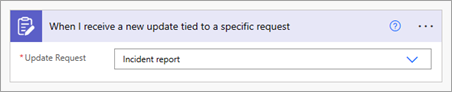
Microsoft’s Updates example includes posting a submission to a chat or channel through a flow. Before reproducing the pattern, verify the destination and the identity used to post. Organisation policies and available connectors may differ from the documentation screenshot.
Make the message scannable
Put the request reference and required action first, then add a short summary and a source link. Avoid dumping the entire form response into chat. Use a stable message pattern so readers can distinguish a routine update from a request requiring a decision.
Test who can see and respond
Use a non-sensitive sample and inspect the message as an intended reader. Confirm that links work and that replies reach a responsible person. Define how repeated failures or duplicates should be reported without starting a notification loop in the same channel.
Working template
Destination decision
Needs a named decision -> responsible reviewer
Needs shared coordination -> relevant project channel
Routine status only -> source record or digest
Contains restricted detail -> restricted record with minimal notification
Unknown owner -> coordinator queue
Illustrative starting point. Adapt it to your inputs, permissions and review process.
Before you use it
- The destination matches responsibility.
- Sensitive fields are not broadcast.
- The action is stated first.
- Replies and failures have an owner.